How I backup all my files – Automation and Redundancy is King
So last Black Friday of 2019, I snatched 2 very good deals:
- The lifetime 1TB cloud storage service from Koofr which I got for ~$78.
- 1TB VPS for €50/3yr from hostsolutions.ro which I saw from the LET forum.
I haven’t really heard anything about Koofr, but I know the great benefits of using the cloud to sync and/or backup your files. We all know how disheartening it is to suddenly lose your phone along with all your personal photos/videos. You might be creating backups via copying it to your own PC and/or uploading it to Facebook, but that would still require manual work, and who has the time? Better to just use these cloud services to automate it.
Koofr, “cloud”, what?
For those who don’t know how it works, these type of services allows your devices like smartphones or laptops to automatically upload the files in it to a server called “Cloud”, which can now be easily accessed by your other devices.
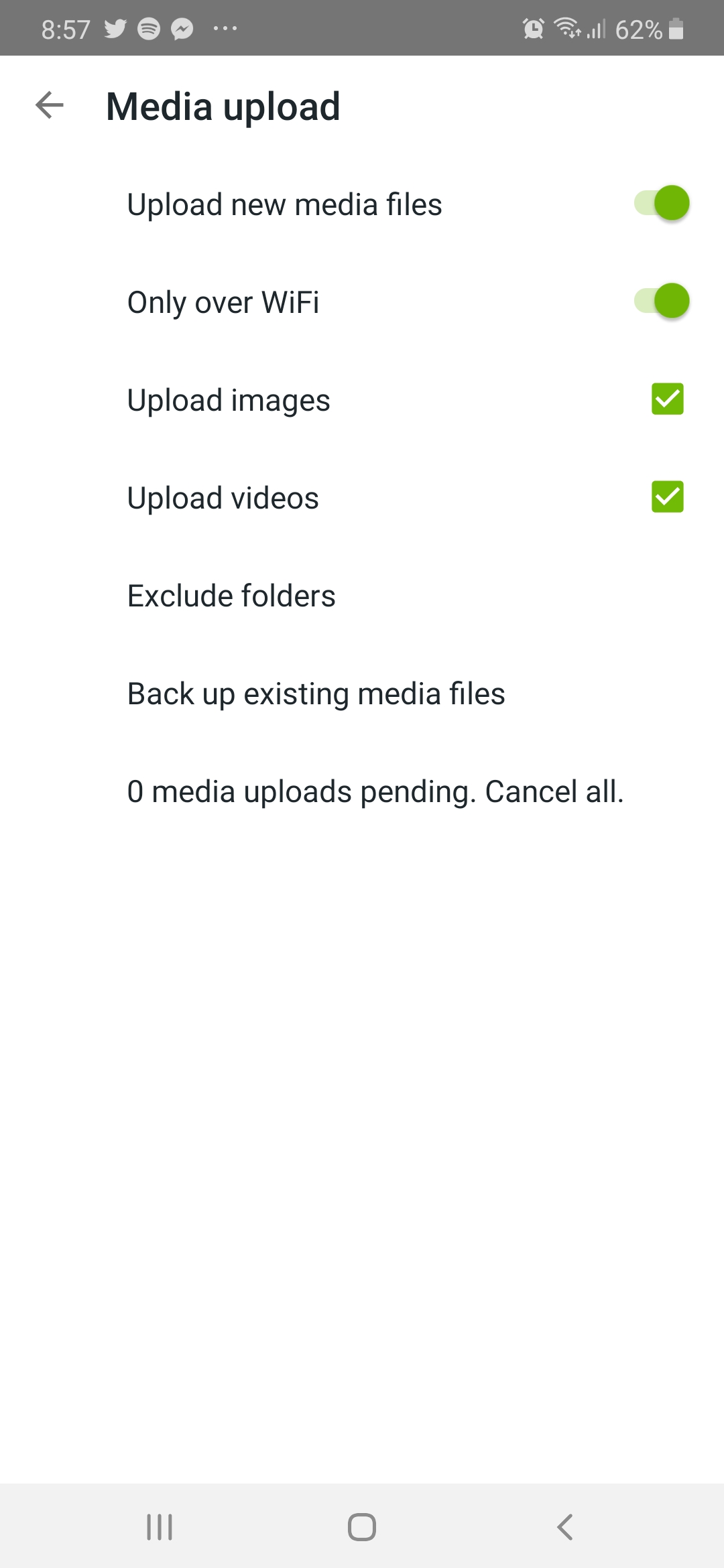
We are using 3 phones at home, and all of them are in sync to Koofr:
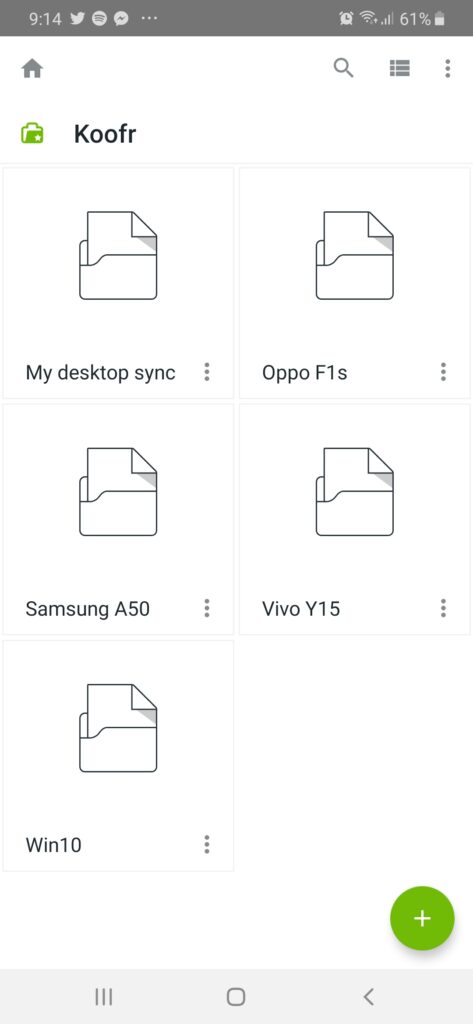
It all works well and fine, by we started noticing some things:
- Trying to stream the videos from the Koofr app/website is really slow. Well, we are probably just getting our money’s worth. I know its probably better to download the videos first, but who has time for that? I just want to watch it via stream, I don’t want it to be saved on my phone and still bother deleting it after watching. There should be a way to easily access the files so we can stream it.
- There’s still not much redundancy. We can’t completely rely on Koofr alone to back up our files, we should also backup Koofr to another server!
Creating a website for our Koofr files
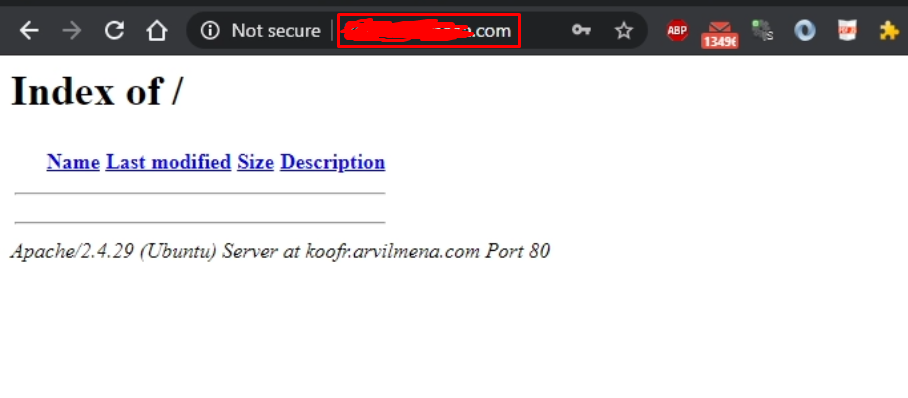
Using the 1TB VPS I got, I will set up a website I and my wife would go to easily access our files.
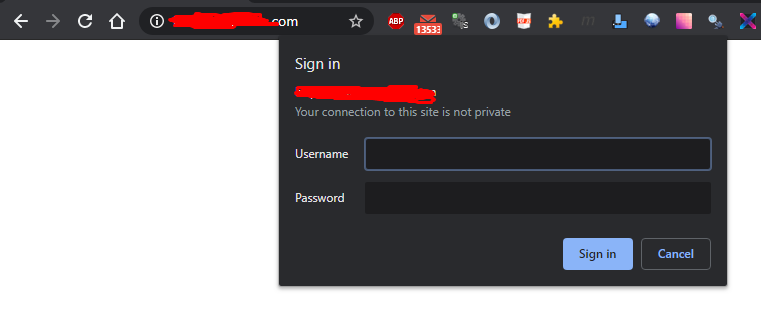
And of course, there should be username/password to access the files.
I will probably install SSL/Let’sEncrypt later on.
Here comes Rclone
I haven’t tried Rclone before, but I kept hearing good things about it. But what it does is, it allows you to sync/copy/access the files you have on a cloud service. You can learn more details about Rclone and the supported cloud platforms on its website.
Using the same server, we are are going to install Rclone and set it up
run our sync:

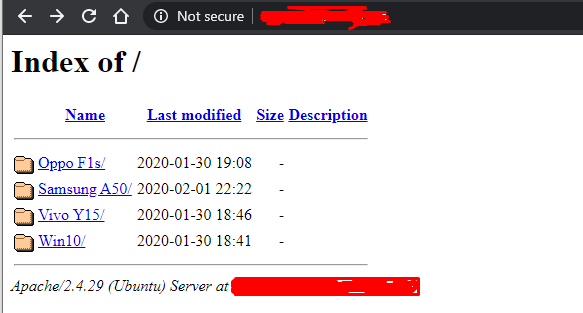
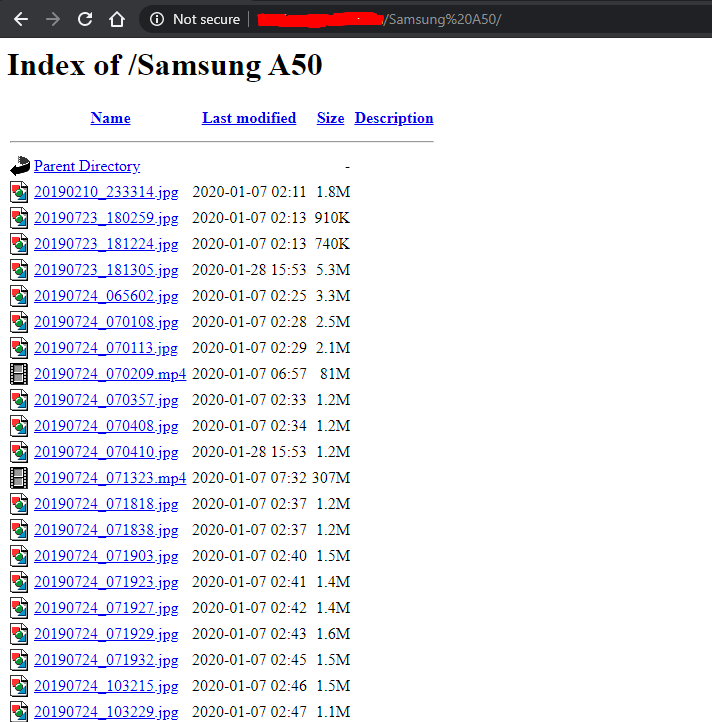
Confirm that we can view our files using our browser/Google Chrome
Making it automated
Using crontab we can schedule Rclone to sync once every day so that we do not have to log in to command line and issue the sync manually.
Hope you enjoyed how I set up the redundancy system of all our media files across different devices. Is there a better way? How did you set up yours? Let me know in the comments below.